One clip. Your social formats, together.
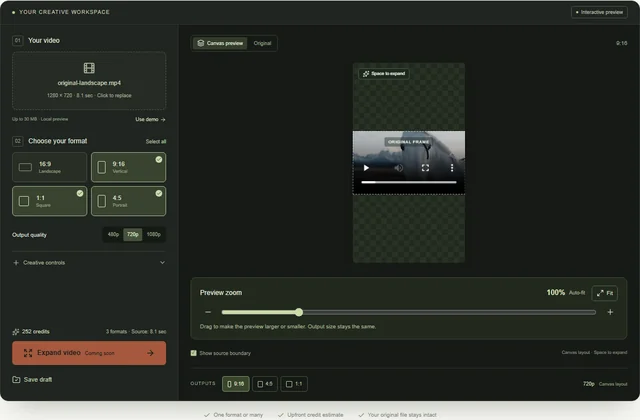
Open 9:16, 4:5 and 1:1 in one workspace. Upload your clip, remove any formats you do not need and compare each composition.
Upload your clip, shape the canvas and save your composition.
Real editor screenshots. Clear steps. Find the right canvas for your video, then try the workflow yourself.
 SCREENSHOT GUIDE
Prepare multiple social video formats from one clip. Start with a shared 9:16 composition for TikTok, Instagram Reels and YouTube Shorts, then add feed formats where you need them.
5 min read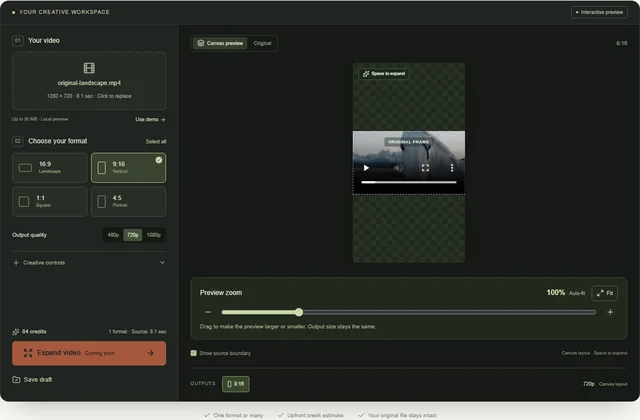 SCREENSHOT GUIDE
Make a landscape video fit a vertical canvas. Compare cropping, blur and AI expansion, then plan a 9:16 version without cutting away the original shot.
4 min read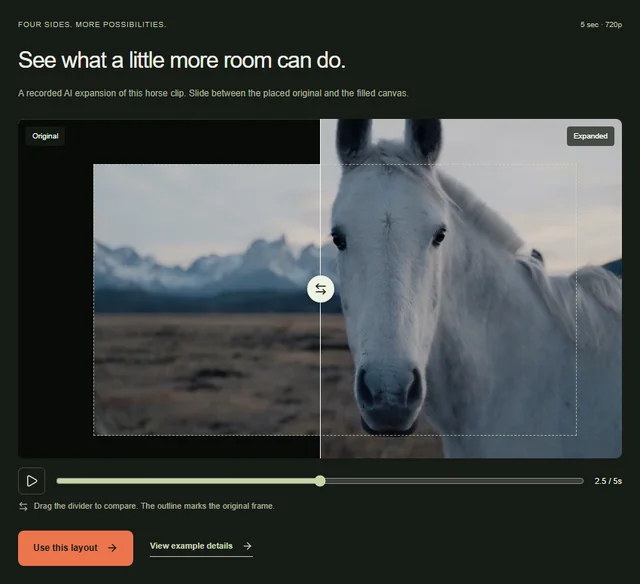 SCREENSHOT GUIDE
Follow the editor with real screenshots: upload a source, choose an aspect ratio, adjust the room around the shot and compare a recorded AI expansion.
4 min readSCREENSHOT GUIDEChoose the approach that fits the shot before spending time or credits.
3 min read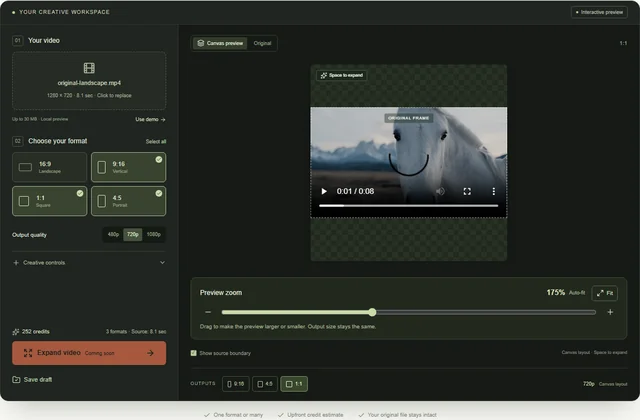 SCREENSHOT GUIDE
Plan the versions your placements need, without creating four exports by default.
4 min read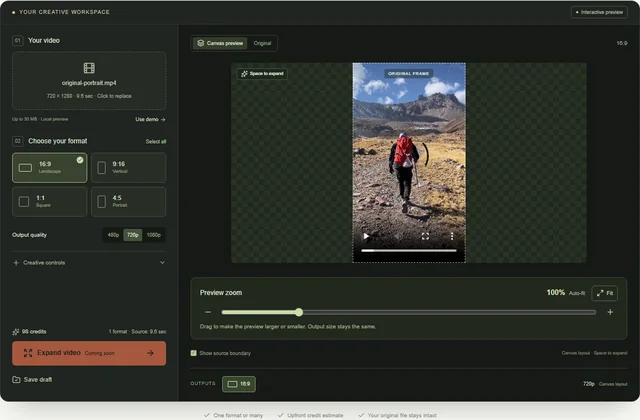 SCREENSHOT GUIDE
Give a portrait clip room on the left and right. Follow this screenshot tutorial to plan a 9:16-to-16:9 conversion for a widescreen player or website.
5 min read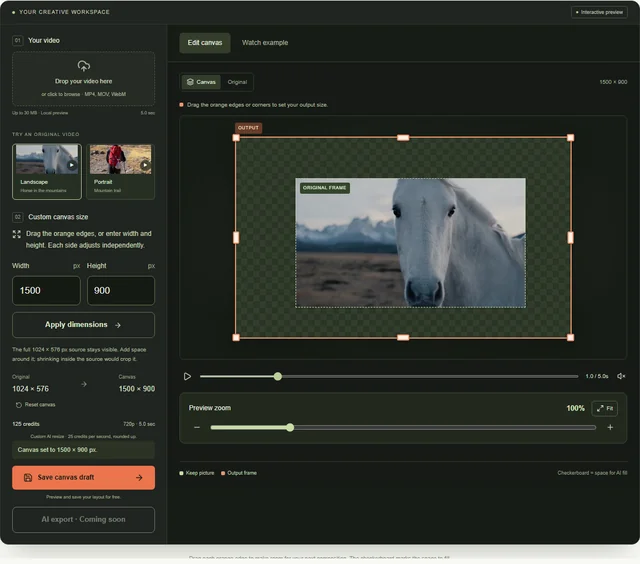 SCREENSHOT GUIDE
Set a specific canvas width and height, or drag each edge independently. Use the four-sided AI example as a starting point for your own video composition.
5 min read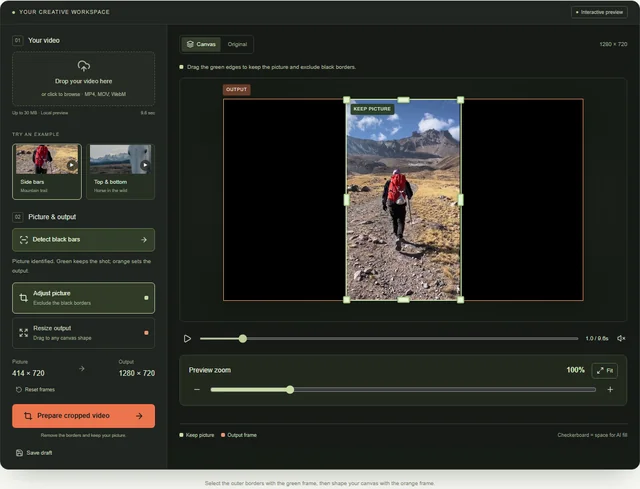 SCREENSHOT GUIDE
Find whether borders are part of the file, detect their edges and confirm the picture you want to keep. Follow real screenshots to prepare a cropped source locally.
5 min readOpen 9:16, 4:5 and 1:1 in one workspace. Upload your clip, remove any formats you do not need and compare each composition.
Upload your clip, shape the canvas and save your composition.