Open Custom video size, select Edit canvas and enter Width and Height in pixels. Click Apply dimensions, or drag an orange edge to change one side. The full source stays inside the canvas. Check the custom resize credit estimate and save your layout.
Screenshots show the current workspace. Click any image for a closer look.
Watch the example, then choose a source
Open Custom video size. Watch example shows a recorded five-second AI expansion with a draggable comparison divider. Play it and look at the original-frame outline to see where new scenery was added. Click Use this layout to load that sample's geometry into Edit canvas. To work on your own footage, use the upload area instead.
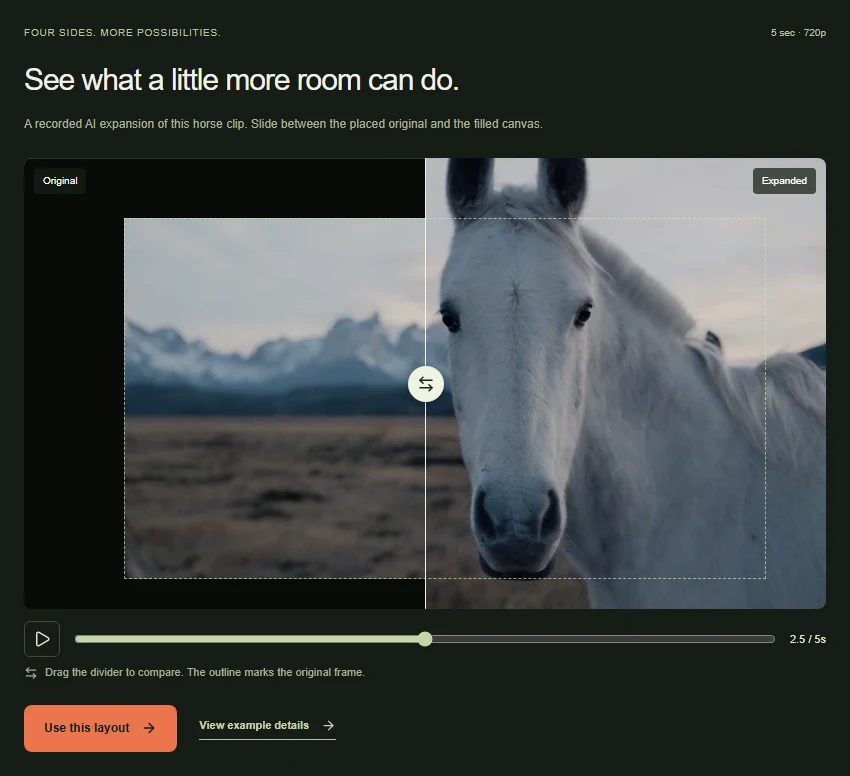 View full-size screenshot
Enter the canvas width and height in pixels
For the supplied 1024 × 576 example, enter 1500 in Width and 900 in Height, then click Apply dimensions. The orange output frame changes immediately. These numbers describe the surrounding canvas, not the source's pixel resolution or a smaller file size. The preview keeps the whole source and rejects a canvas that would cut into it. To make a smaller delivery file, use a conventional resize or compression workflow instead.
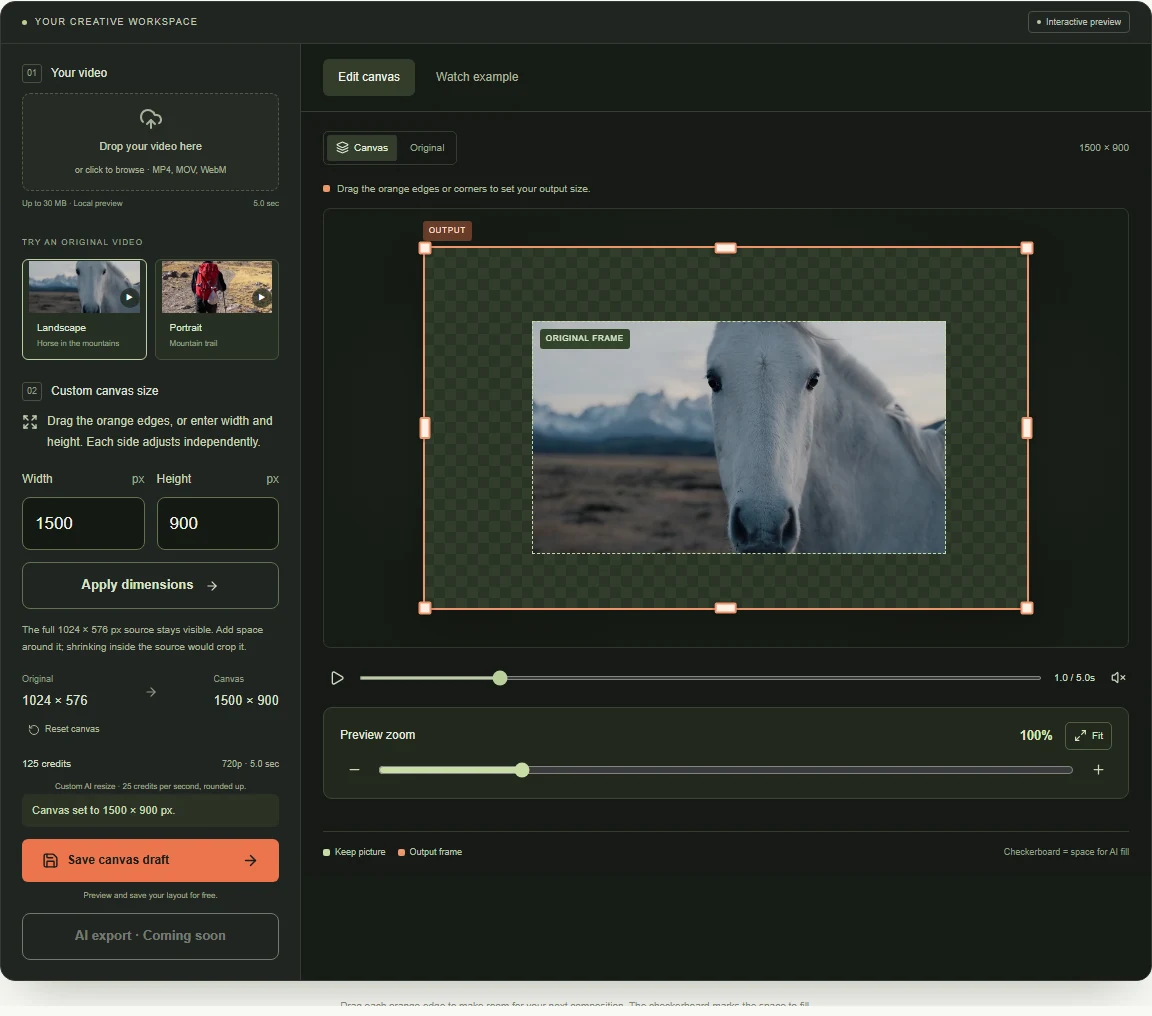 View full-size screenshot
Drag one side for an asymmetric expansion
Grab an orange edge or corner and drag outward. You can add more space to one side than the other; a fixed aspect-ratio preset is not required. Focus an edge handle and use the arrow keys for fine changes, or Shift plus an arrow for a larger step. The recorded layout adds 160 px on the left, 96 px on the right, 96 px on top and 48 px below.
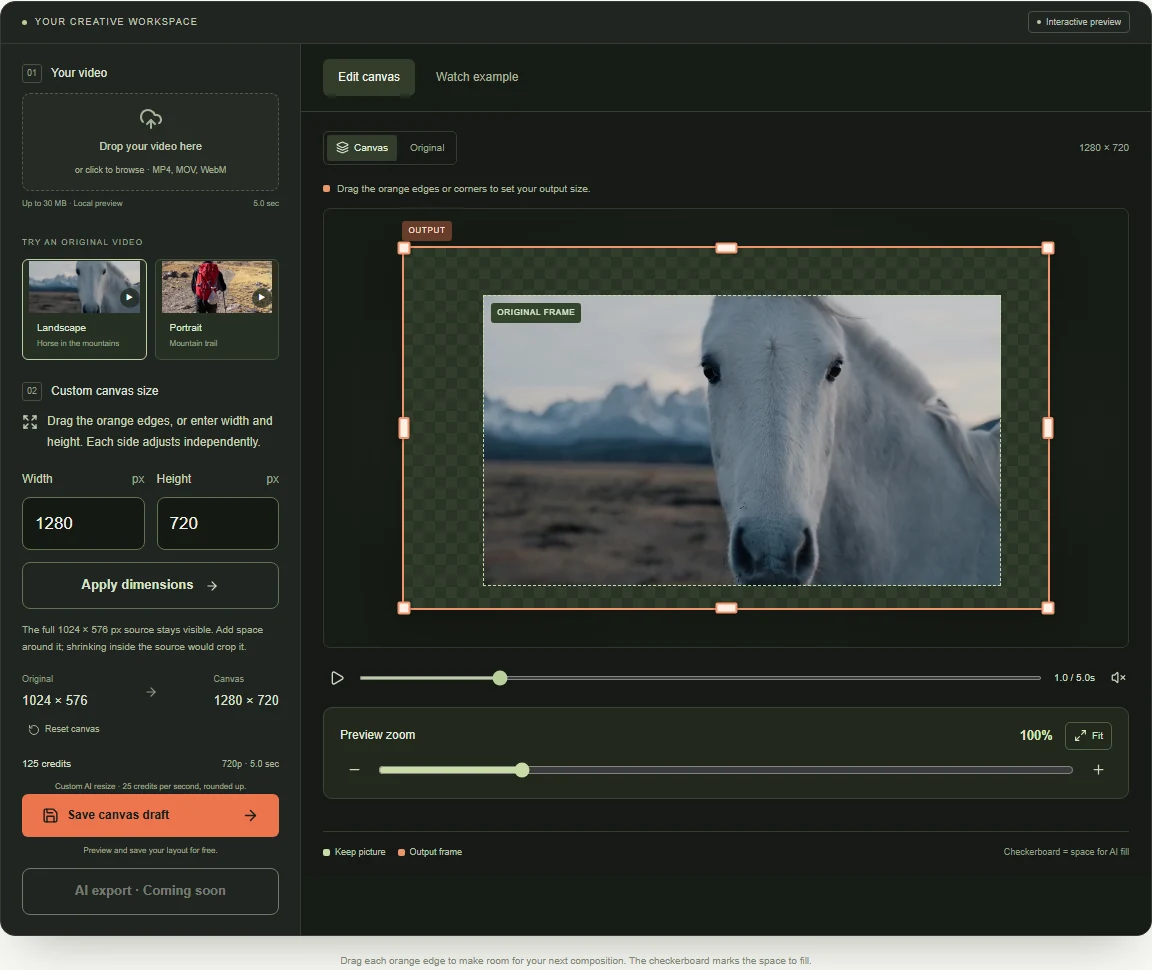 View full-size screenshot
Save the dimensions and reopen the composition
Play through your source, check the intended placement and click Save canvas draft. Open My videos to return to the same coordinates later. Sample drafts restore directly; uploaded clips need to be reattached. The prerecorded result demonstrates one tested layout and remains unchanged when you drag your own canvas.
Common questions
Can I set a custom video size instead of choosing 16:9 or 9:16?
Yes, for the layout preview. Enter a width and height or drag the output frame. The canvas must contain the whole source and stay within the current editor's allowed range.
Can I expand only the left or top of a video?
Each orange edge moves independently. Drag the left or top edge outward while keeping the others in place, then save the asymmetric canvas.
Does changing pixel dimensions reduce video file size?
Not in this workspace. It records canvas geometry, while file-size reduction needs an actual encode with chosen resolution, codec and bitrate.
How much does custom AI resizing cost?
Custom AI resizing uses 25 credits per source second at 720p, rounded up. Five seconds is 125 credits. The editor shows the estimate beside your canvas; saving a layout is free.
Build the canvas your placement needs.
Start from the example's four-sided layout, then enter your dimensions or drag an edge.
Upload your clip, shape the canvas and save your composition.