Video expansion adds space around the frame, rather than extra seconds. In AI Video Expander, upload a clip, choose its destination ratio, inspect the full source and save a layout. Watch the recorded before-and-after example to see how AI can fill that surrounding space.
Screenshots show the current workspace. Click any image for a closer look.
Choose a short, clear source
Start with a short clip with a stable camera and a clear subject. Use a clean export without encoded black borders. Keep your original file so you can compare details after processing.
Pick a useful destination
Decide where this version will be used. Choose the required aspect ratio and inspect how the full source fits. Start with one output; additional formats are optional.
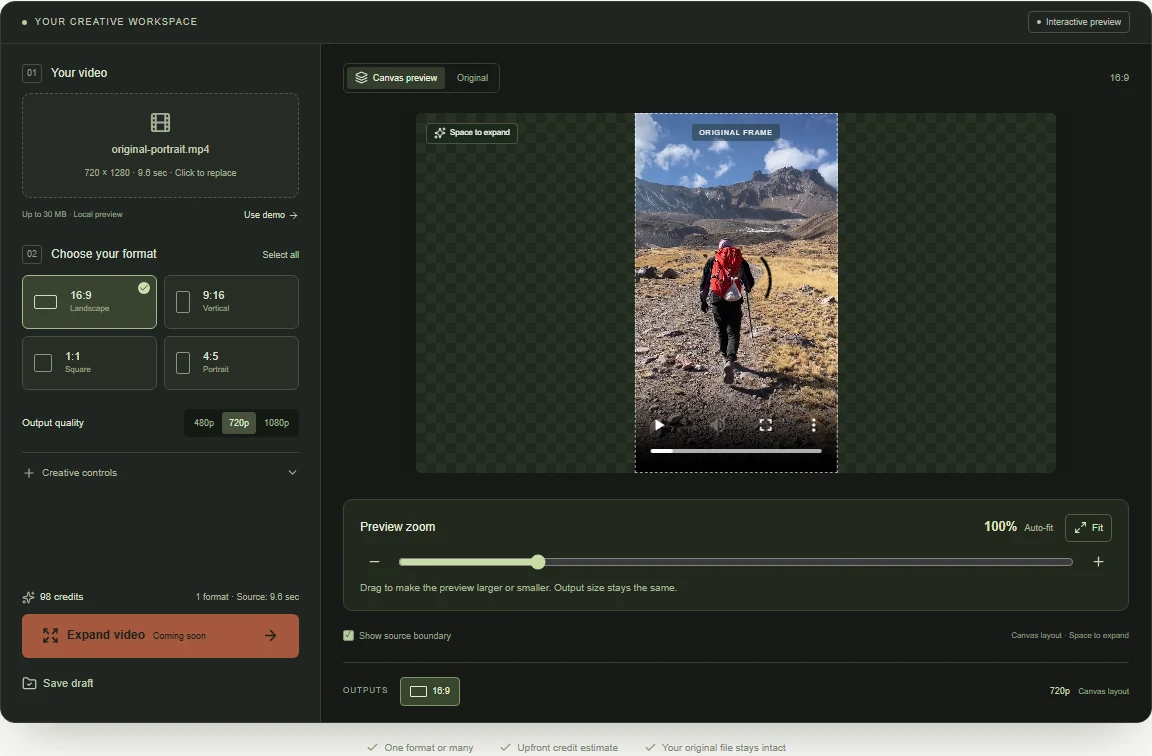 View full-size screenshot
Use the preview to check composition
The checkerboard marks the area for new scenery. Keep the original source as large as practical, and add a simple description of the surrounding environment if needed.
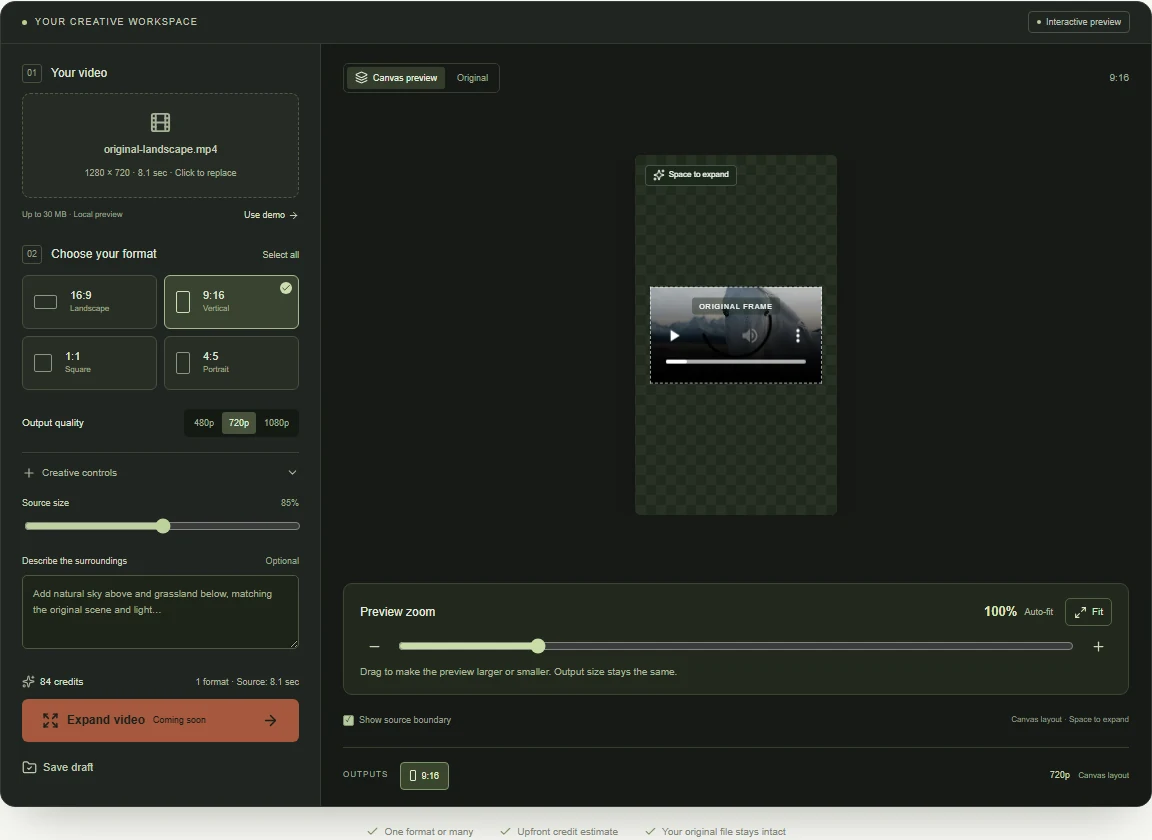 View full-size screenshot
Compare an example, then save your composition
Open Examples to inspect an actual generation. The four-sided example plays the original and expanded clips together: drag the divider and watch the edges, movement and source details. Check your own layout directly in the canvas and click Save draft to keep it. My videos stores the settings in this browser. Uploaded files need to be selected again when you reopen a draft.
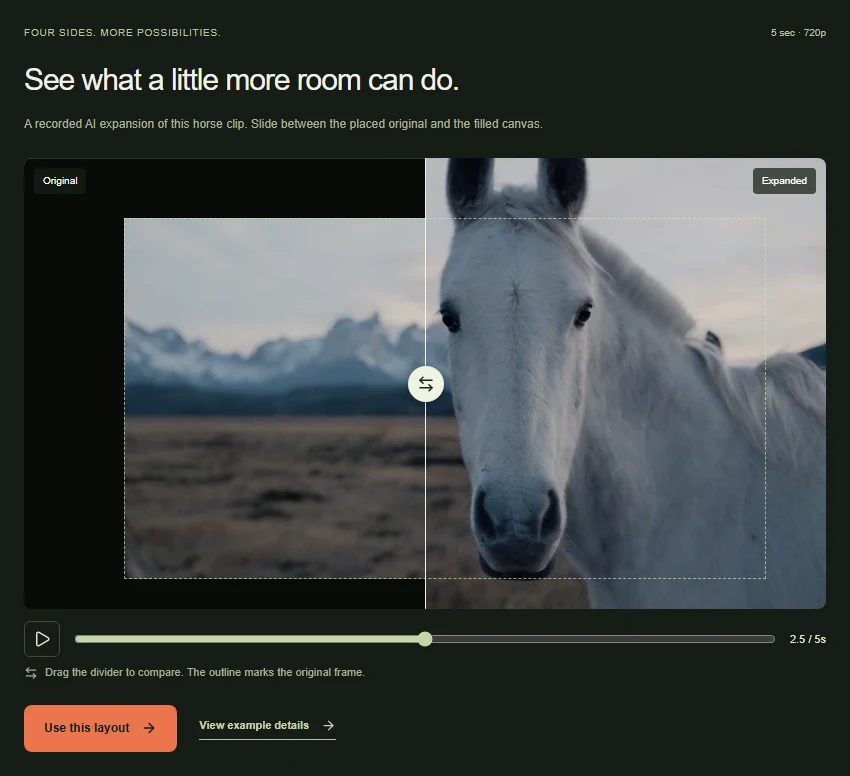 View full-size screenshot
Common questions
What is the difference between video expansion and video extension?
Expansion, also called video outpainting, adds picture area around the frame. Extension adds time. This product focuses on spatial expansion and does not create extra seconds.
How do I expand only one side of a video?
Use the Custom video size workspace and drag the orange edge on that side. You can save an asymmetric layout.
Does writing a prompt generate the missing background?
Use the surroundings field to describe the scene, light and camera movement. Save that direction with your composition.
Make room around your next video.
Upload a clip and explore the canvas, source size and surrounding space in the video outpainting editor.
Upload your clip, shape the canvas and save your composition.