Vertical to Horizontal Video Converter

Make a vertical video horizontal while keeping the full portrait shot visible. Preview a 16:9 composition with space for new scenery on both sides.

YOUR CREATIVE WORKSPACE
Video studio
01

Your video

Up to 30 MB · Local preview

Example video: 9:16 · 9.6 sec

02

Choose your format

Output quality
Creative controls
98 credits1 format · Example: 9.6 sec
16:9
AI-expanded example
100%Auto-fit

Drag to make the preview larger or smaller. Output size stays the same.

AI-expanded example · 720p
OUTPUTS
720p MP4 example
One format or many Upfront credit estimate Your original file stays intact
MAKE ROOM FOR YOUR VIDEO

How can I convert portrait video to landscape without cutting it?

Fit the full portrait video to the height of a 16:9 canvas, then fill the unused sides. AI outpainting can add scene content to those areas. It changes the surrounding canvas rather than rotating the subject sideways.

Useful for
Reusing a vertical clip in a wide player, presentation or landscape edit.
Composition tip
Keep the source centered for balance, or open Custom video size to add more space on one side.
THREE STEPS TO YOUR COMPOSITION

How to convert portrait video to landscape

  1. 01

    Start with a vertical clip

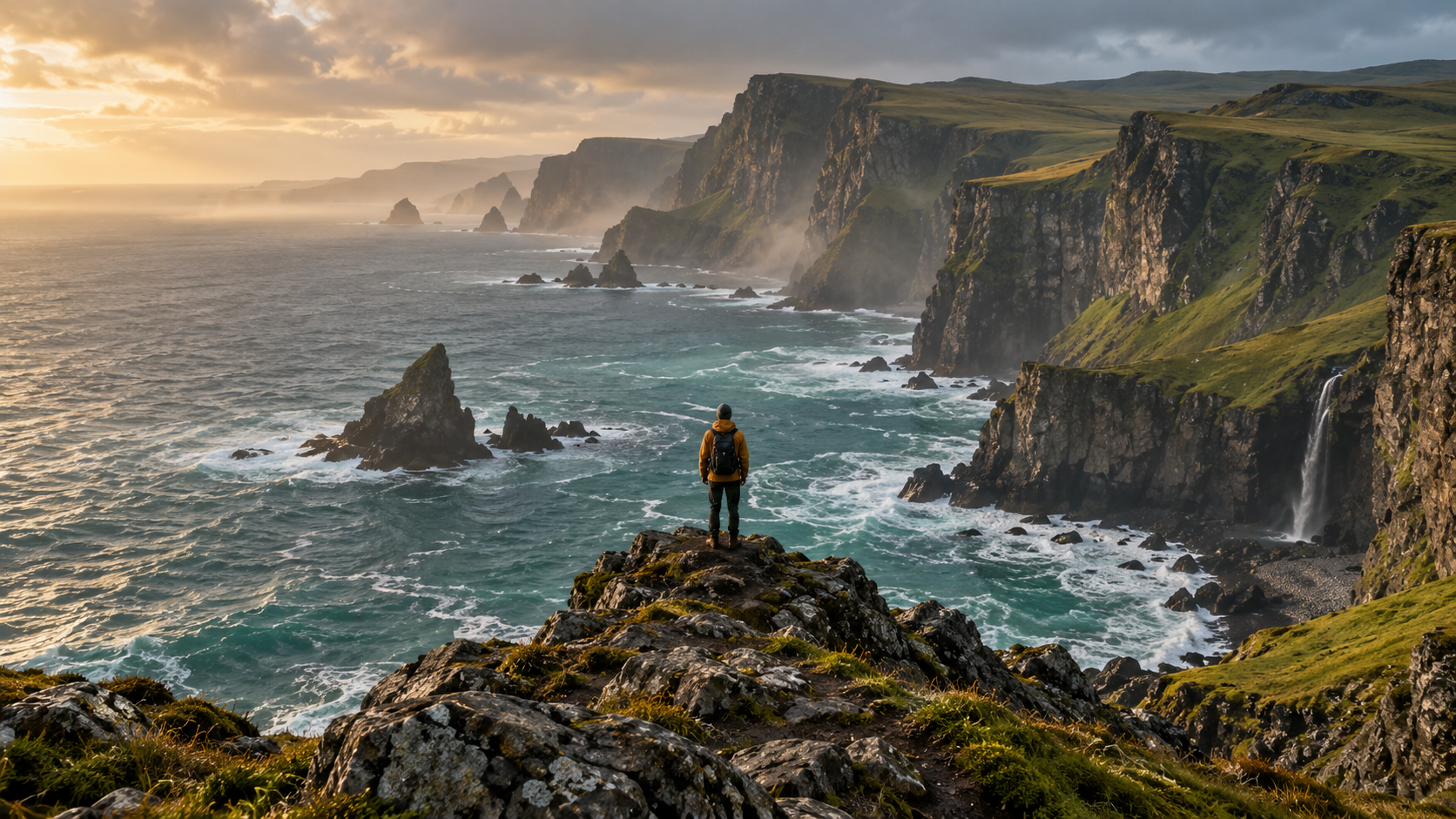
    Upload a portrait video or play the mountain-trail example. Switch to Original to see the 9:16 source.

  2. 02

    Preview a widescreen frame

    16:9 is selected for you. Compare it with Original to see the wider composition. For uploaded clips, the layout preview marks where more scene content is needed.

  3. 03

    Check both sides in motion

    Inspect the example's landscape and horizon throughout playback. For your own clip, review the layout and save a draft with the estimate.

Follow the vertical-to-horizontal screenshot tutorial
SAME SOURCE. THREE DIFFERENT CHOICES.

Change the format. Choose what you keep.

Compare a 9:16 source in a 16:9 canvas before choosing AI expansion.

LESS OF THE ORIGINAL

Crop to fill

Fills the frame by trimming the edges. Useful when all the important action fits inside the crop.

THE WHOLE SHOT, WITH FILLER

Fit with a blurred background

Keeps the entire source over a blurred copy. A practical option when you only need a different canvas.

SPACE FOR NEW SCENERY
ORIGINAL
THE WHOLE SHOT, NEW SURROUNDINGS

Expand the scene with AI

Plans space for new scenery around the original. AI generation uses credits and the result needs review.

Compare three ways to fit the same shot into a new frame.

Compare cropping, blur and outpainting

Make a portrait video landscape without cropping

A conventional crop can remove the top and bottom of a portrait shot. Fitting the entire source keeps them visible, but leaves unused width. AI expansion aims to continue the setting into that width instead of leaving side bars.

Adapt a vertical clip for a widescreen player

A portrait clip made for a mobile feed may later be needed in a YouTube landscape video, a presentation or a website. The original subject remains relatively narrow within the wider setting; expanding the background does not make the person fill the new width.

Converting orientation is different from rotating

Rotating a correctly recorded portrait clip turns the subject sideways. A portrait-to-landscape composition keeps the subject upright and changes the surrounding canvas. If the file already contains black side bars, inspect those first.

Understand black bars before expanding