Fit the complete portrait source inside a 16:9 canvas. Its height sets the fit, leaving space on the left and right. Use padding for a simple delivery, or consider AI expansion for new surroundings. Do not stretch the source or rotate it just to change the frame shape.
Screenshots show the current workspace. Click any image for a closer look.
Inspect your portrait original
Open the vertical-to-horizontal tool. Try its hiking example or select your own video in the upload area. Switch to Original and play the full shot before changing its layout. Check whether a person walks toward the edge or a product leaves the frame. This example starts with a 720 × 1280 portrait source; your video can have different dimensions.
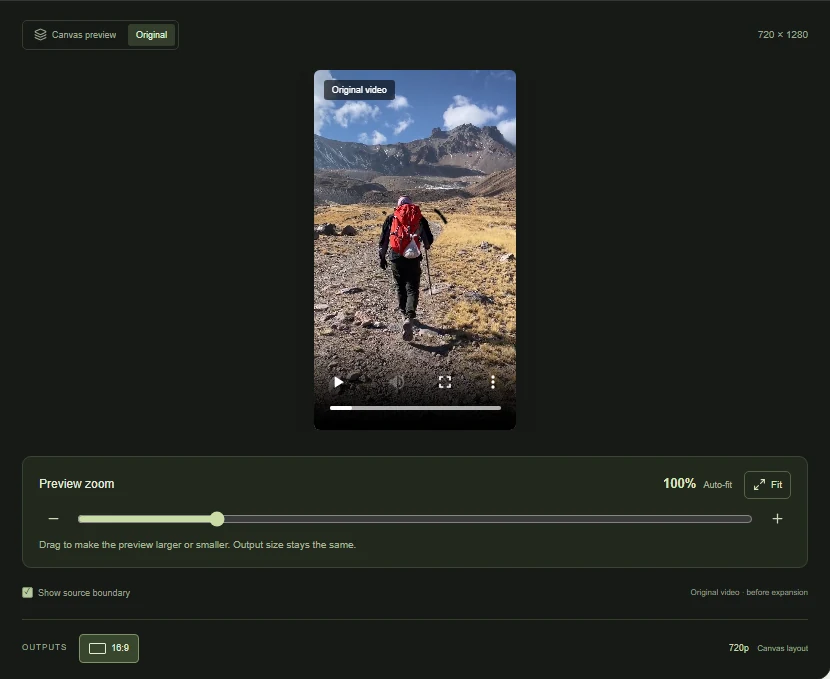 View full-size screenshot
Choose 16:9 and keep the whole source visible
Select 16:9 under Choose your format. When the source fills the canvas height, the remaining width appears on both sides. For a 720 × 1280 source, fitting into a 1280 × 720 landscape frame would make the source about 405 × 720 before filling the side space. This explains why the subject can look smaller than a close crop. Preview zoom changes your viewing size, while the source-to-canvas relationship stays the same.
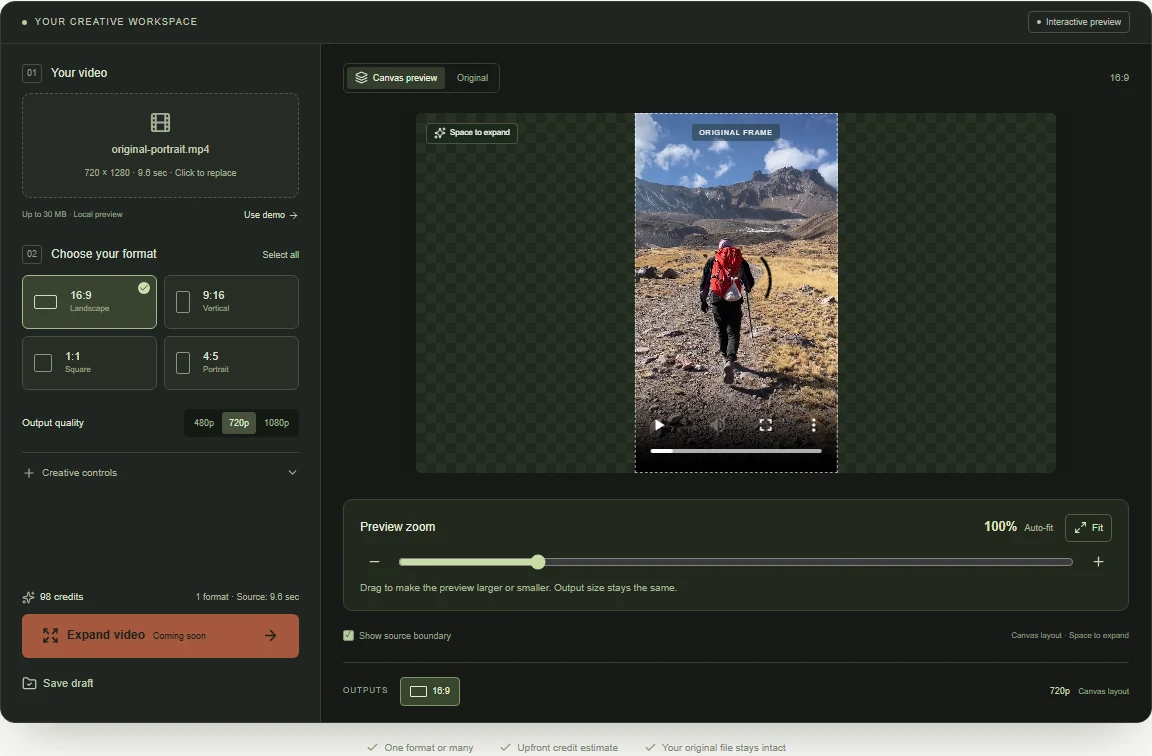 View full-size screenshot
Decide what belongs in the new side areas
If you need a background that contains no invented scene information, use plain or blurred padding in a conventional editor. For continuous-looking scenery, review the portrait-to-landscape example in Examples and watch how terrain and moving subjects behave. AI may change details within the source as well as generate new surroundings. If you need extra room on only one side, use Custom video size instead of a centered ratio preset.
Preview the layout and save a draft
Keep just 16:9 selected unless another destination needs a second shape. Review the canvas and click Save draft. Open My videos to return to the saved layout. Uploads are local and the video file is not stored with the draft, so reattach the original when prompted. Keep the saved composition as your starting point for a landscape edit.
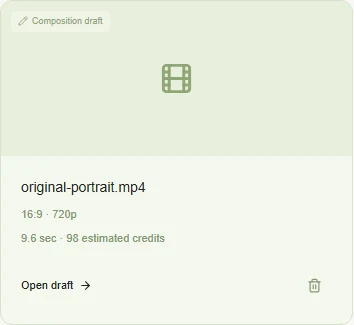 View full-size screenshot
Common questions
Can I convert 9:16 to 16:9 without stretching?
Yes. Fit the source at its original proportions and fill the unused sides. Cropping and stretching are different operations: cropping removes picture area, while stretching changes the subject's proportions.
Why are there empty sides around my vertical video?
The destination is wider relative to its height. The preview shows where additional background is needed. Changing the ratio alone does not generate that background.
Can I use this for a YouTube or website video?
16:9 is a useful widescreen layout for many players. Check the actual placement, file size, sound and resolution requirements before publishing.
Give your portrait clip a wider canvas.
Open the vertical-to-horizontal workspace, upload your source and inspect a 16:9 layout.
Upload your clip, shape the canvas and save your composition.