If black borders are encoded in the file, crop just those outer borders while preserving the active picture. Detect black bars suggests that boundary; the green frame lets you correct it. If the bars come from the player instead, adjust how the video fits the player. Black objects inside the scene are not borders.
Screenshots show the current workspace. Click any image for a closer look.
Check whether the black bars are inside the file
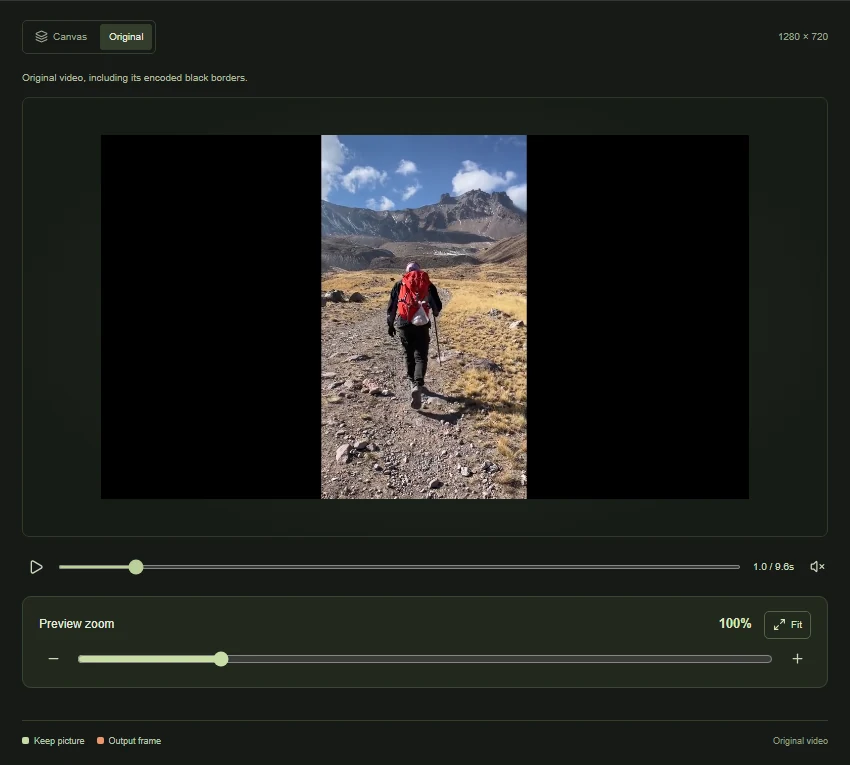
Open the black-bars workspace and inspect Original. The Side bars example has vertical black areas encoded around a portrait hiking clip. Top & bottom demonstrates horizontal borders. Bars visible only in one video player may instead come from how that player fits the video. In that case, removing pixels from the file is not the right starting point. Check the clip in another player before deciding.
 View full-size screenshot
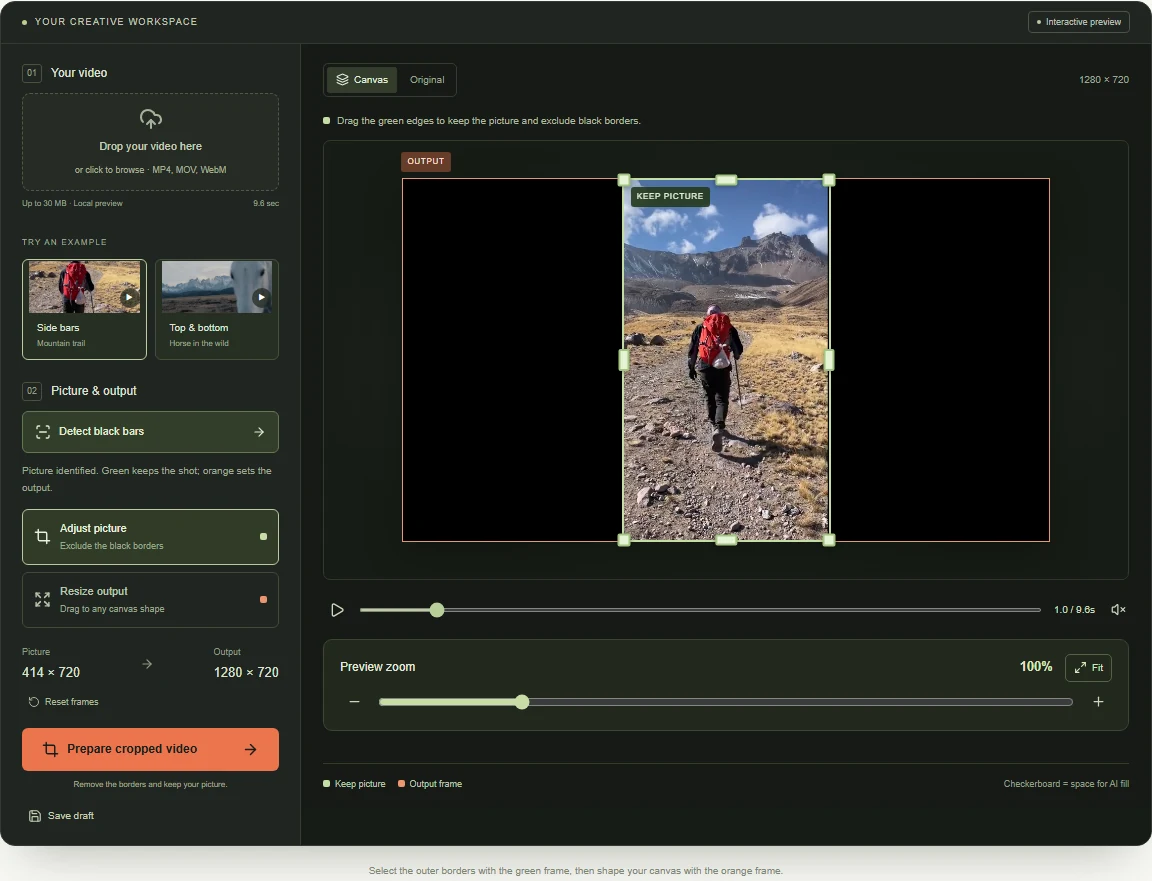
Detect outer borders and confirm the green picture frame
Click Detect black bars. The tool samples multiple frames and looks for consistent borders at the outside edges. It does not select every dark pixel in the scene. Switch to Adjust picture and move the green edges if needed. Play through dark scenes, transitions and captions near the border before accepting the boundary. Confirm the picture boundary before preparing your download.
 View full-size screenshot
Set the output frame only if you need extra space
Resize output switches to the orange frame. You can drag it before or after detection; Detect black bars is a helper for selecting the picture, not a prerequisite for resizing the output. The green rectangle controls what is kept from the source. The orange rectangle describes the canvas you want around it. Use Prepare cropped video to download the picture inside the green frame.
Prepare and download the cropped source
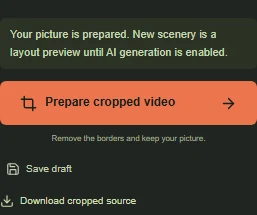
After checking the green picture frame, click Prepare cropped video. When processing finishes, Download cropped source appears. Its file excludes the borders outside the confirmed green frame. Open the downloaded file and check the complete clip, its edges and sound. You can also save the canvas settings as a separate draft.
 View full-size screenshot
Common questions
Can I remove black bars without cropping the actual video picture?
You can crop the border area while keeping the active scene intact. This changes the file's frame dimensions. Filling those borders with new scenery is a separate expansion task; changing to another aspect ratio may still require padding or generated content.
Will the detector remove black clothing or a dark background?
It looks for consistent outer borders, not all black pixels. Dark objects can still make edges ambiguous, so inspect and correct the green frame before processing.
What are letterbox and pillarbox bars?
Letterbox bars run across the top and bottom. Pillarbox bars run down the left and right. Both may be encoded in the file or added by a player's fit behavior.
Do I need to detect black bars before resizing the output?
No. You can choose Resize output immediately and set the canvas. Detection helps establish which source picture to keep; it does not unlock output resizing.
Keep the scene. Check the borders.
Try a bordered example or upload your clip, then confirm the active picture before preparing it.
Detect the borders, adjust the picture and download your cropped clip.