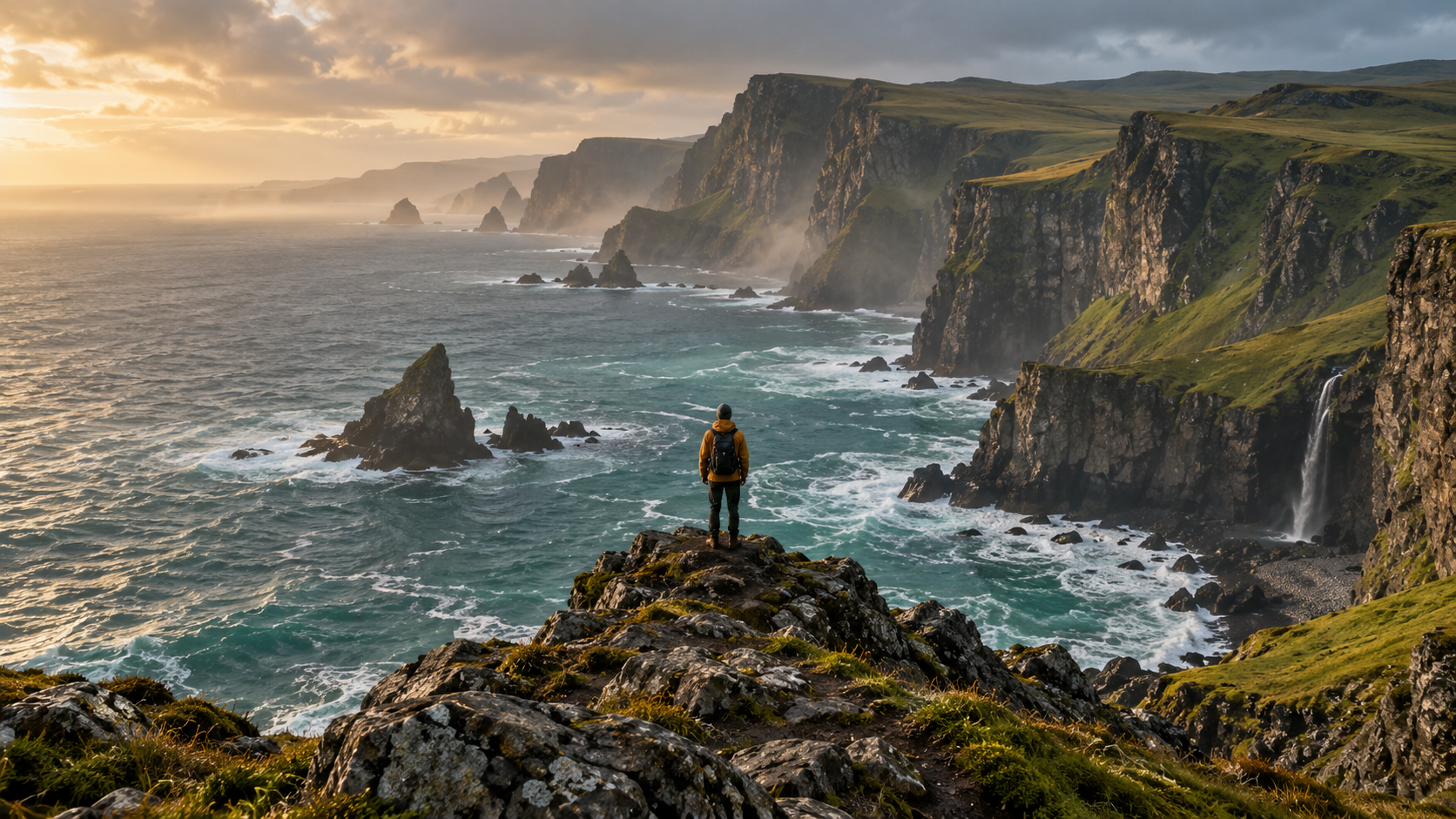
AI Video Outpainting

Expand the scene beyond your video's edges. Compare a real AI-expanded example, then upload your clip to preview the canvas you want to create.

YOUR CREATIVE WORKSPACE
Video studio
01

Your video

Up to 30 MB · Local preview

Example video: 9:16 · 9.6 sec

02

Choose your format

Output quality
Creative controls
98 credits1 format · Example: 9.6 sec
16:9
AI-expanded example
100%Auto-fit

Drag to make the preview larger or smaller. Output size stays the same.

AI-expanded example · 720p
OUTPUTS
720p MP4 example
One format or many Upfront credit estimate Your original file stays intact
MAKE ROOM FOR YOUR VIDEO

What is AI video outpainting?

AI video outpainting generates visual content outside an existing video's frame. It can make room above, below or beside the source for a new composition. It expands the picture, not the timeline, and the added scenery is generated rather than recovered from the original recording.

Useful for
A shot that benefits from additional surroundings when its format changes.
Composition tip
Describe the surroundings, lighting and camera movement you want to continue.
THREE STEPS TO YOUR COMPOSITION

How to plan video outpainting

  1. 01

    Start with an existing video

    Upload an MP4, MOV or WebM, or compare the mountain-trail example with its Original. Outpainting starts from footage you already have.

  2. 02

    Define the extra canvas

    Choose a target aspect ratio. Reduce Source size if you want new space on every side, rather than only along two edges.

  3. 03

    Review the expansion area

    Use the source boundary to identify the missing scenery. Describe the surroundings and save your composition with its credit estimate.

Read the video expansion guide
SAME SOURCE. THREE DIFFERENT CHOICES.

Change the format. Choose what you keep.

Compare a 9:16 source in a 16:9 canvas before choosing AI expansion.

LESS OF THE ORIGINAL

Crop to fill

Fills the frame by trimming the edges. Useful when all the important action fits inside the crop.

THE WHOLE SHOT, WITH FILLER

Fit with a blurred background

Keeps the entire source over a blurred copy. A practical option when you only need a different canvas.

SPACE FOR NEW SCENERY
ORIGINAL
THE WHOLE SHOT, NEW SURROUNDINGS

Expand the scene with AI

Plans space for new scenery around the original. AI generation uses credits and the result needs review.

Compare three ways to fit the same shot into a new frame.

Compare cropping, blur and outpainting

What AI video outpainting adds

Video outpainting generates scenery outside the recorded frame. It can continue a landscape, an interior or a product setting into a larger canvas. The new content is a plausible interpretation of the surroundings; it is not a recording of what the camera missed.

Video frame expansion and temporal consistency

A video background must make sense as the shot moves. Watch the full result for shifting horizons, repeated objects and changes in light at the join. A clear subject and a continuous scene provide more useful context than rapid cuts or crowded edges.

Expand the frame or uncrop the shot

Choose a new ratio when the destination needs a different shape. To keep the current shape while opening up a tight composition, use the uncrop workflow and add space around the source.

Uncrop a video without changing its format