Choose 9:16, fit the full landscape source inside it and inspect the space above and below. That preserves the visible frame in the layout. AI expansion fills new scenery; padding or blur fills the space without inventing scene content. The steps below create a local composition preview.
Screenshots show the current workspace. Click any image for a closer look.
Choose between cropping, padding and AI expansion
A crop fills the vertical frame by removing the left and right sides of a horizontal shot. If your subject stays near the center, that may be enough. Fitting the entire clip over a blurred background keeps everything visible. AI expansion adds new scenery above and below the source; use it when those surroundings improve the composition. The preview on this site plans the third approach, while the comparison diagrams explain all three.
Open a 9:16 canvas with your horizontal source
Open the horizontal-to-vertical converter and play its 9:16 AI-expanded example. Switch to Original to compare the 16:9 source at the same playback position. For a composition preview with your own source, use a browser-readable MP4, MOV or WebM clip no larger than 30 MB. The editor reads the actual video dimensions, so your source does not have to be exactly 16:9.
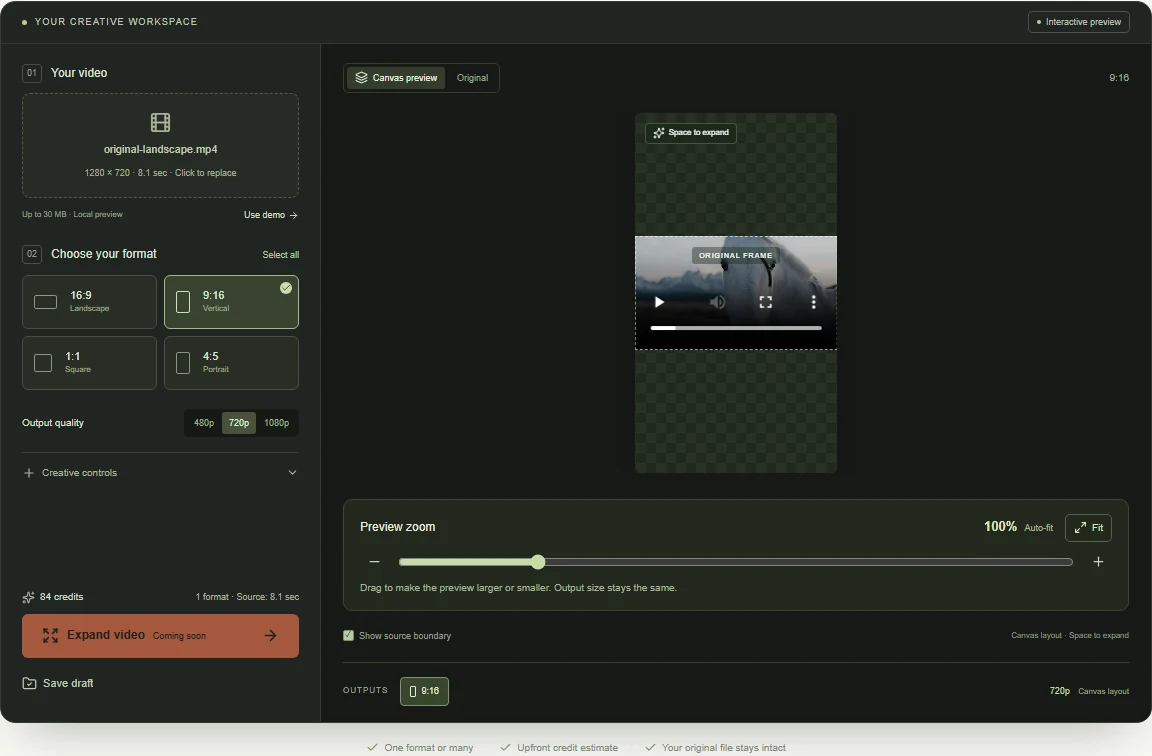 View full-size screenshot
Check subject size and the space around it
Fitting a complete 16:9 source into a 9:16 canvas leaves substantial space above and below it. Your subject may look smaller than it would in a crop. Play the uploaded clip and inspect small text, products and faces. Keep the source as large as practical. If readability matters more than keeping every edge, a conventional crop may be a better choice.
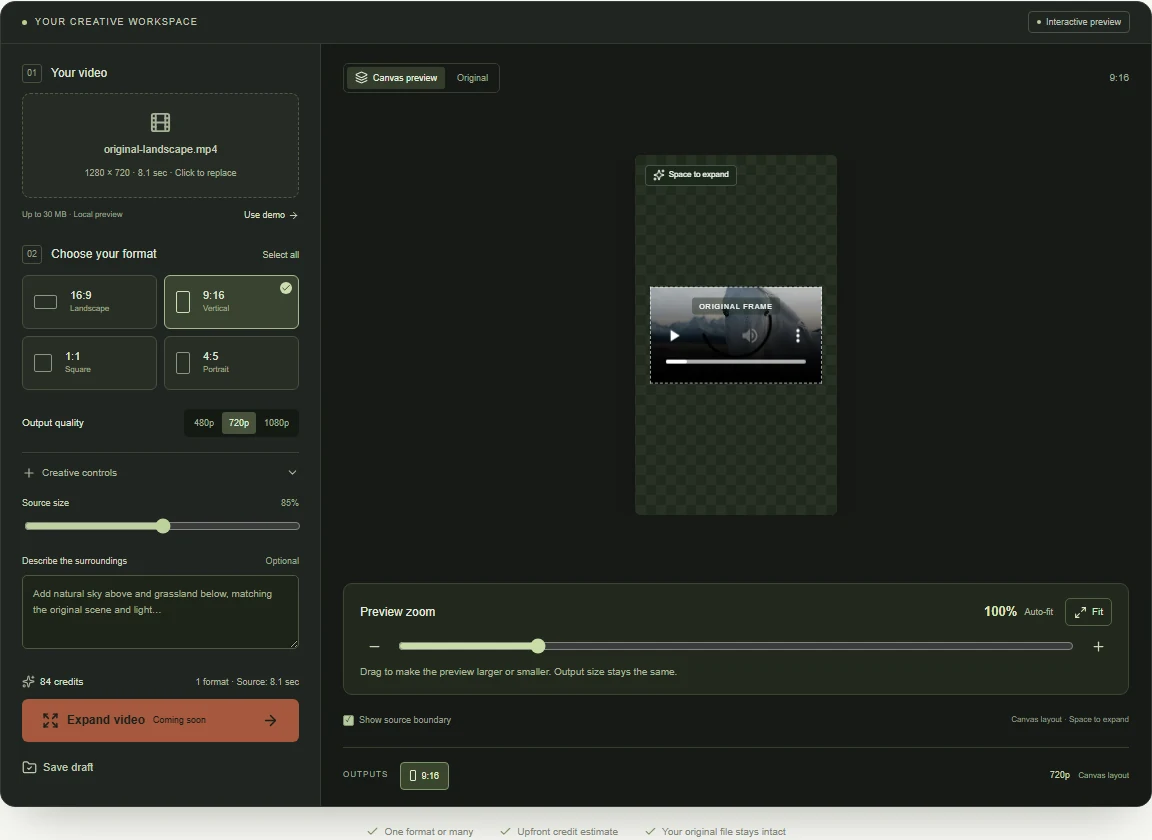 View full-size screenshot
Save your layout and review delivery requirements
Choose one ratio or add others when you need them, read the credit estimate and save a composition draft. Drafts store your settings in this browser; an uploaded video must be selected again when you reopen its draft. Keep the composition ready for your TikTok, Reels or Shorts edit.
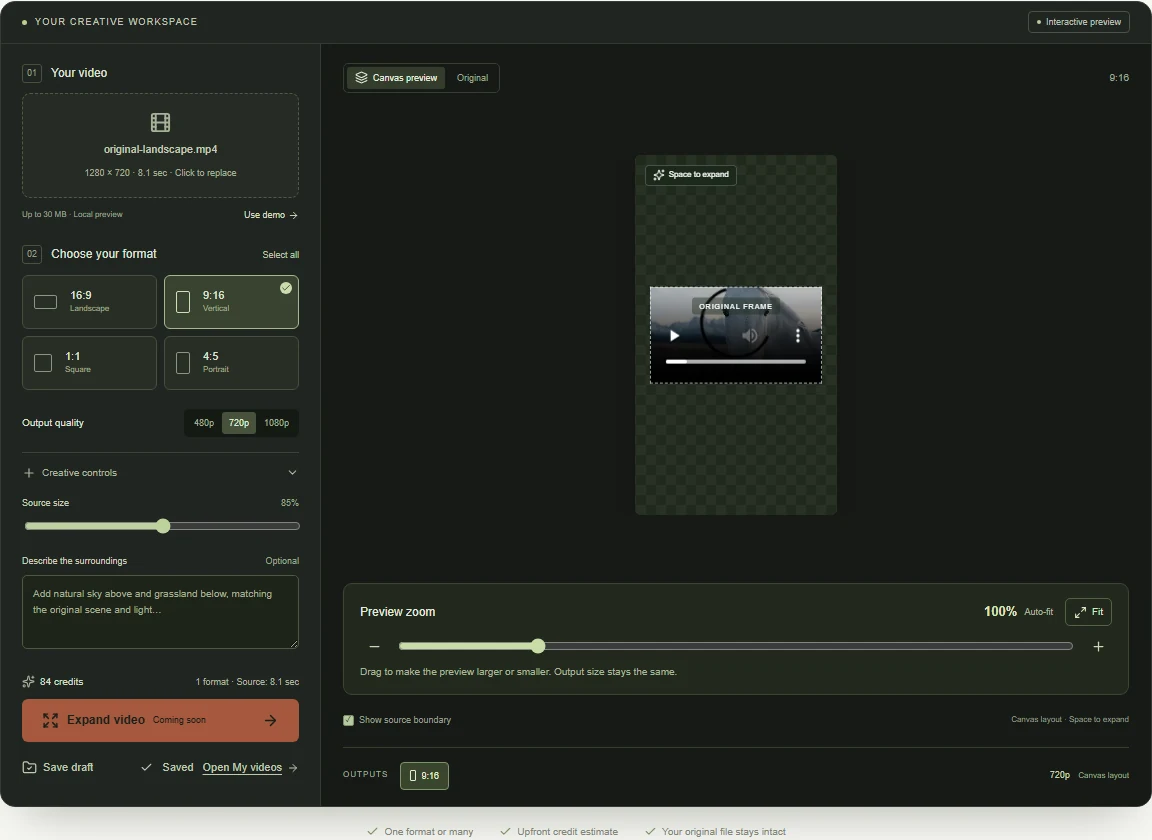 View full-size screenshot
Common questions
Can I change 16:9 to 9:16 without cropping?
Yes, by fitting the whole wide frame inside the tall canvas. Something must fill the extra space: plain padding, blur or generated scenery. Stretching the picture to fill both dimensions distorts it.
Why does my landscape video look small in the vertical preview?
Its entire width must fit inside a narrower frame. Keep Source size at 100% for the largest full-width fit. Preview zoom only enlarges what you see in the editor; it does not change the output composition.
Will AI keep faces and subtitles exactly the same?
Use Original and Expanded to compare faces, fine text and edge transitions throughout playback.
See your landscape clip in a vertical frame.
Open the 9:16 canvas, compare the prepared example and check how your own shot fits.
Upload your clip, shape the canvas and save your composition.