Use 16:9 for a full YouTube podcast episode and 9:16 for an already edited excerpt headed to TikTok, Reels or YouTube Shorts. For a two-person podcast, a narrow crop may remove one speaker. Keeping the complete 16:9 frame inside a 9:16 canvas preserves both speakers but makes them smaller, so compare that trade-off before publishing.
Prepared comparison frames show the original source beside the prerecorded AI-expanded result. Click an image for a closer look.
| Ratio | Use it for | Before publishing |
|---|---|---|
| 16:9 | Full YouTube episodes and websites | Keep the complete landscape master for long-form viewing and future excerpts. |
| 9:16 | TikTok, Reels and YouTube Shorts | A shared vertical starting point for short-form podcast excerpts; inspect both speakers and platform overlays. |
| 4:5 | Portrait feed teasers | Use when you want a taller feed asset without the full 9:16 canvas. |
| 1:1 | Square podcast promos | Useful for placements that specifically require or benefit from a square composition. |
Keep the 16:9 master and resize finished excerpts
Record and preserve the full landscape podcast master for YouTube, websites and future editing. Before making a vertical clip, choose and edit the excerpt you actually want to publish. Export that finished segment with both speakers, microphones and important set details inside the frame. ExpandClip changes the canvas around the excerpt; it does not find highlights in a full episode.
Understand the two-person podcast trade-off
A two-person landscape shot often places one speaker on each side. A center crop to 9:16 can remove a guest, microphone or body language. Fitting the full 16:9 picture inside a vertical canvas keeps the conversation together, but each speaker appears smaller. A close crop can make one person larger, while a full-frame expansion preserves context. Choose based on what the excerpt needs to communicate.
Compare the prepared 16:9 to 9:16 result
The prepared podcast example keeps the complete two-person source and adds studio scenery above and below it. That composition avoids cutting either guest out of the frame. It is still a generated result: play the full clip and inspect faces, microphones, hands, cables, furniture and background continuity before using the output.
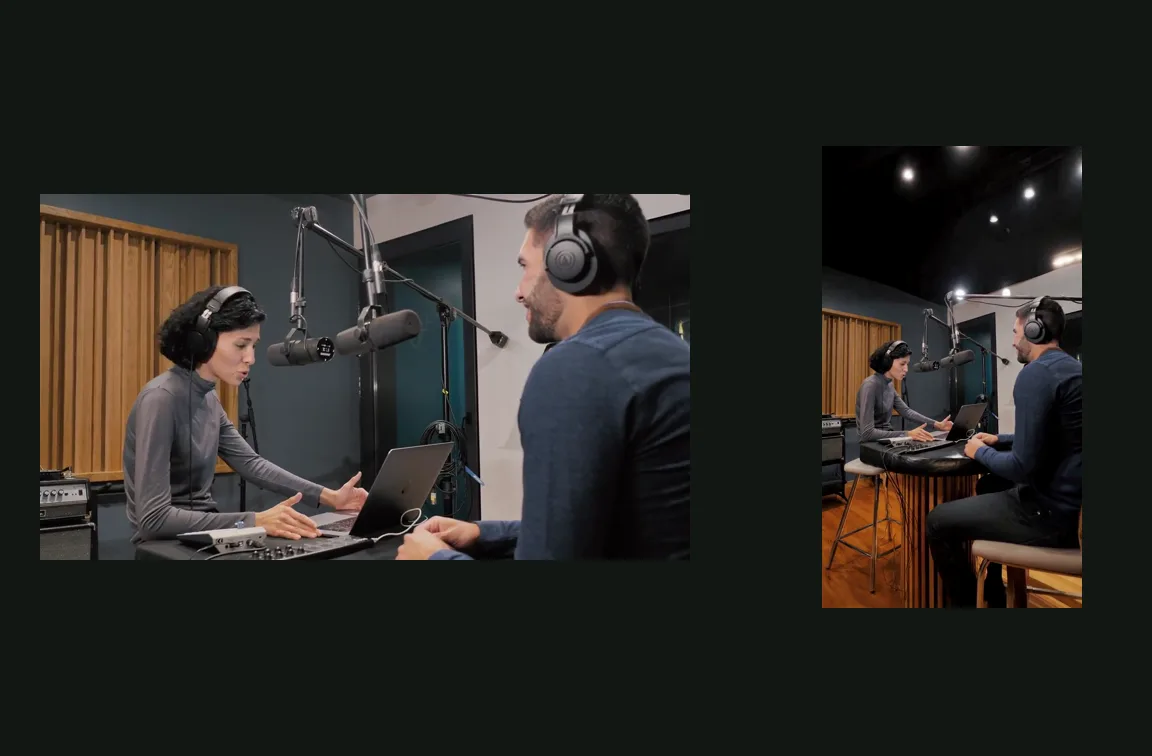 View full-size screenshot
Finish captions and platform checks separately
After approving the composition, add subtitles, graphics and audio finishing in your normal podcast editing workflow. Check the current duration, audio and interface-overlay requirements for TikTok, Reels and YouTube Shorts. ExpandClip does not select highlights, track the active speaker, automatically reframe faces, create captions or certify safe zones.
Common questions
What video size should a podcast use on YouTube?
Use 16:9 for the full YouTube episode. For a short excerpt published as a YouTube Short, prepare a 9:16 version and confirm the current Shorts requirements before uploading.
Can I make a two-person podcast vertical without cutting out a speaker?
Yes, by keeping the complete landscape source inside the vertical canvas and adding space around it. Both speakers remain visible, but they can appear smaller than they would in a close crop.
Does ExpandClip follow the active podcast speaker?
No. It does not track speakers or switch between close-ups. It preserves the complete source composition inside the selected output canvas.
Does ExpandClip select podcast highlights or add subtitles?
No. Upload an already edited excerpt. Highlight selection, captions, graphics and final audio work belong in your normal editing workflow.
Check the platform guidance
Reviewed October 29, 2026. Advertising and organic upload requirements can differ.
- YouTube Help: Get started creating ShortsOfficial YouTube guidance for preparing and publishing Shorts.
- TikTok Ads creative best practicesOfficial guidance for vertical creative and TikTok-specific presentation.
- Meta Reels ads overviewOfficial overview of Facebook and Instagram Reels placements.
Keep both speakers in the vertical cut.
Open the 16:9 → 9:16 podcast workflow, inspect the prepared two-person example and then upload the finished excerpt you want to resize.
Upload an already edited excerpt. ExpandClip changes the canvas; it does not select highlights or add captions.