Keep the source and output at the same aspect ratio, then reduce Source size to leave a border around the recorded frame. Describe only the surrounding scene, run one expansion and compare the full result with the original. AI uncropping generates plausible new pixels; it does not recover footage that was never recorded.
Prepared screenshots show a same-ratio canvas and a recorded original/expanded comparison. Click any image for a closer look.
Decide whether you need an uncrop or a new format
Use uncrop when the video already has the right shape but the subject needs more breathing room. Keep 16:9 as 16:9, 9:16 as 9:16 or the uploaded source ratio as its matching output. If the real task is TikTok, Reels, Shorts, YouTube or another placement with a different shape, use the aspect-ratio workflow instead. That separates a same-ratio AI zoom-out from a 9:16-to-16:9 or 16:9-to-9:16 conversion.
Upload a short clip and inspect the complete original
Open Uncrop Video and upload an MP4, MOV or WebM clip, or start with the prepared horse example. Play the complete source before changing the composition. Check whether a face, product, caption or moving object reaches an edge; anything important near the boundary needs extra attention after generation. The upload is used for a local composition preview until you choose to start a live job.
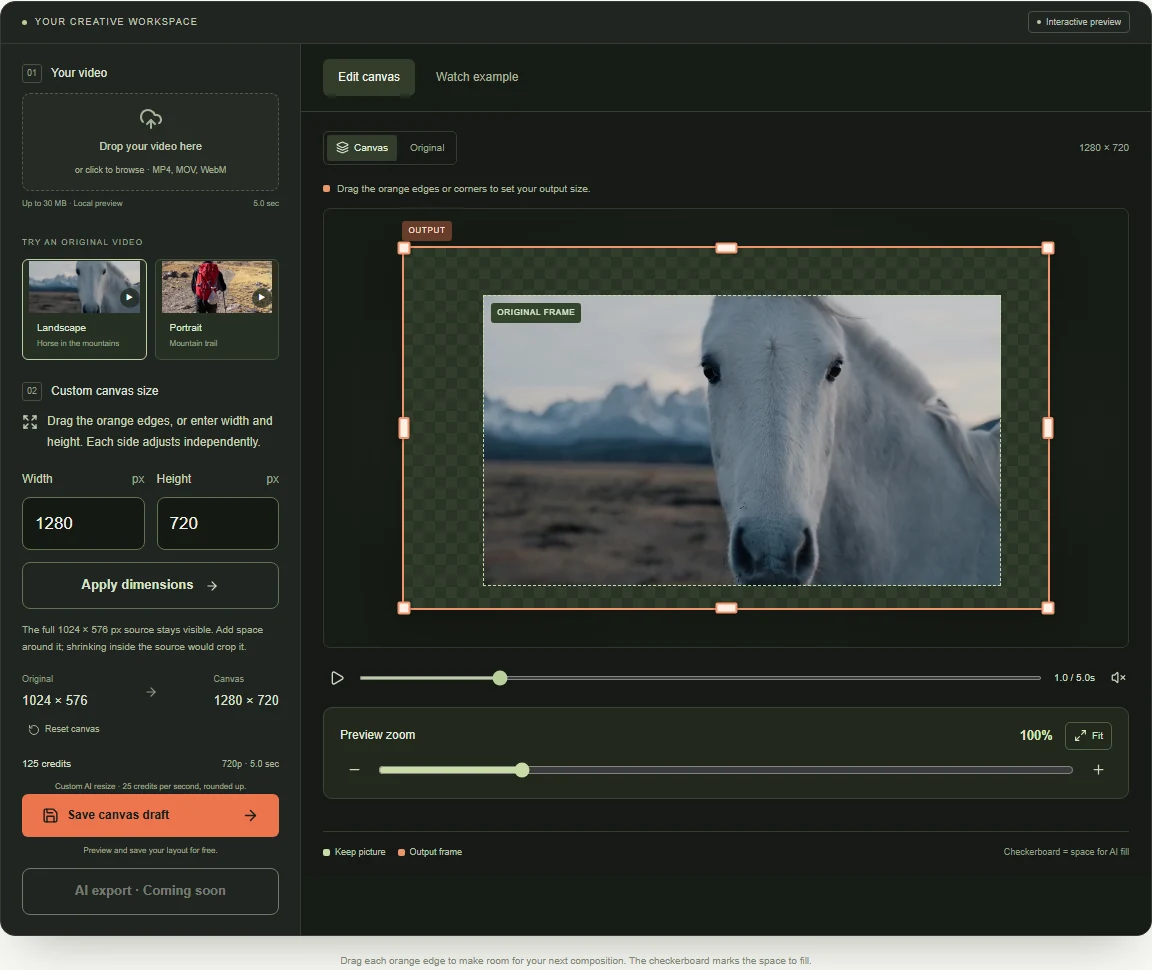 View full-size screenshot
Reduce Source size to plan the AI zoom-out
Start close to the original framing and move Source size down gradually. At 100%, the source fills its normal fit. A smaller setting leaves a border for new scenery and makes the subject occupy less of the final frame. Preview zoom only changes how large the workspace looks on screen; it does not alter the output. Choose the smallest expansion that solves the composition before spending credits.
Describe only the surroundings that should continue
Use concrete scene details already supported by the source: terrain, walls, sky, lighting, perspective and camera movement. Ask the model to continue those surroundings and preserve the recorded subject. Avoid requesting new people, logos, text or objects unless they are essential; every extra invention adds another detail to inspect. A useful direction is short and visual, such as: Continue the mountain grassland, distant ridgeline and overcast sky on all four sides with matching light and camera motion.
Generate once, then review the entire video
Compare the result with the Original at matching moments. Inspect the join around the recorded frame, subject anatomy, faces, hands, text, repeated objects, horizon lines, light and motion in every generated edge. Do not approve the result from a single poster frame. If the expansion is unstable, try a smaller border, a simpler source or a conventional padded background instead of repeatedly expanding a weak result.
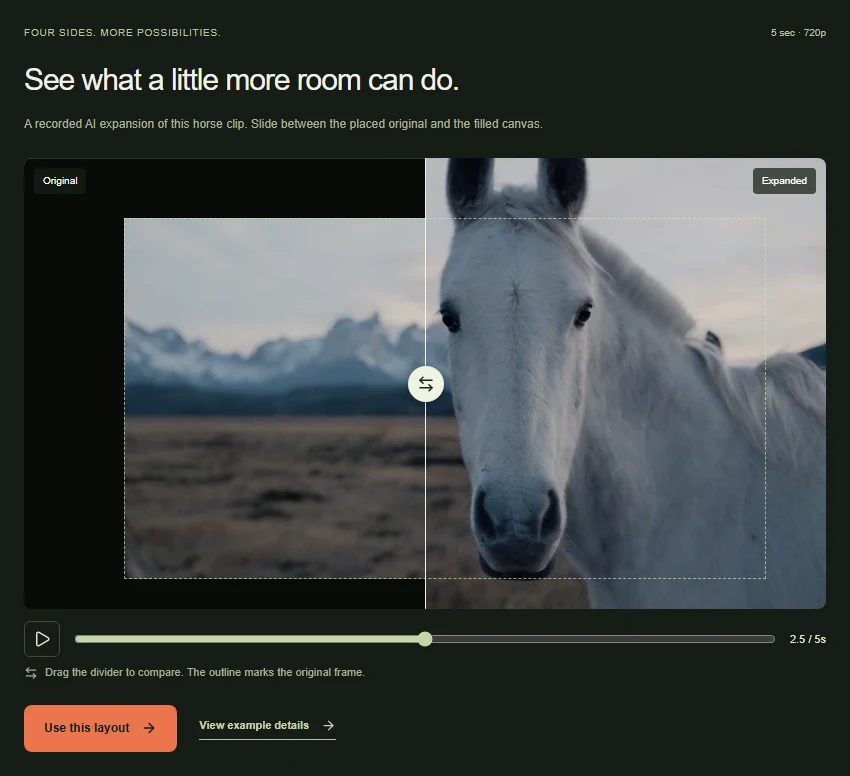 View full-size screenshot
Know when uncropping is the wrong workflow
Use the original uncropped recording whenever it exists. Prefer padding or a conventional edit when the surroundings must contain no invented information. Re-edit text-heavy graphics instead of asking AI to recreate letters or logos, and avoid aggressive expansion on rapid cuts or scenes with important action crossing every edge. AI uncropping is most useful when a clear subject sits inside a continuous environment and a little more room improves the composition.
Common questions
Can AI truly reverse a video crop?
Only the original uncropped file can restore the exact missing pixels. AI uncropping creates a plausible continuation from the visible scene, so the generated area must be treated as new imagery.
Can I uncrop a video and keep the same aspect ratio?
Yes. Keep the source and output shape the same, then reduce Source size to make room on all four sides. A 16:9 source can remain 16:9, and a 9:16 source can remain 9:16.
How much space should I add around the video?
Start with a modest border. A larger zoom-out asks the model to invent more scenery and makes the recorded subject smaller. Compare the composition at several Source size settings before starting a paid generation.
When should I change the aspect ratio instead?
Choose a new ratio when the destination requires a different shape, such as 9:16 for a vertical placement or 16:9 for a widescreen player. Use uncrop when the current shape is already right but the shot feels too tight.
Open the shot without changing its shape.
Keep the current ratio, adjust Source size and see exactly how much surrounding canvas the AI would need to fill.
The composition preview is free. Before a live AI job starts, the editor shows the estimated credit charge.